vim

I have been actively using vim (technically neovim) for
development at work and at home for almost 4 years (and was switching between
between vim and atom the year before). I like it mainly because it allows me
to use modal editing which is faster for me compared to Visual Studio
Code or Atom. Another
reason is that almost all servers has either vi or vim available. One more
reason is that I am pretty bad at using point-and-click interfaces and I would
like to stick to command line tools as much as possible. Perhaps the most
important reason, it looks cool to code in a terminal, isn’t it?
The learning curve of vim is pretty steep at the beginning. Luckily, I got
myself a little head start by using the configuration from Jess
Frazelle. I then forked it and made my own
customisations. The way that I start learning
vim is by going through
vimrc and try to
understand the mappings involved and try it out in vim. In retrospect, this is
probably not the best way to start and I should have start with vimtutor and
go through the basics instead. As many people have already suggested, I did not
try to use it at work at the beginning as this would affect my productivity too
much. After trying it out for 8-10 weekends with my hobby projects, I felt more
confident with vim and tried to use vim and Visual Studio Code at work.
After 3 or 4 months, I was getting more used to vim and use it solely at work.
During this process, one of the things I have done to help myself learning more
about vim is to consume a large amount of YouTube videos where people
demonstrate their skills with vim. Here is a list of my favourite channels.
Besides YouTube videos, I learned quite a lot by reading through sub-reddits of r/vim and r/neovim.
It is amazing that I can still learn something new about vim everyday now
although I have been using it for more than 4 years full-time. The rest of this
post is not meant to be a tutorial but rather showing what vim can do with
some of my configuration and I hope this can inspire someone to use vim as
their editor.
Apart from vimrc
configuration, there are plug-ins to make life easier to use vim. There are
many plug-in managers available. I inherited Jess Frazelle’s way of doing it by
using pathogen from Tim Pope. I like
this way of managing it as it is purely git operations (although everyone else
is using vim-plug which is good as
well). The rest of this post is based on my
configuration and many of the key bindings
(or mappings) are not the same as the built-in ones.
If the following is too long a read for you, feel free to jump to my notes.
Essentials
To be able to know what mappings are available is important for learning so that
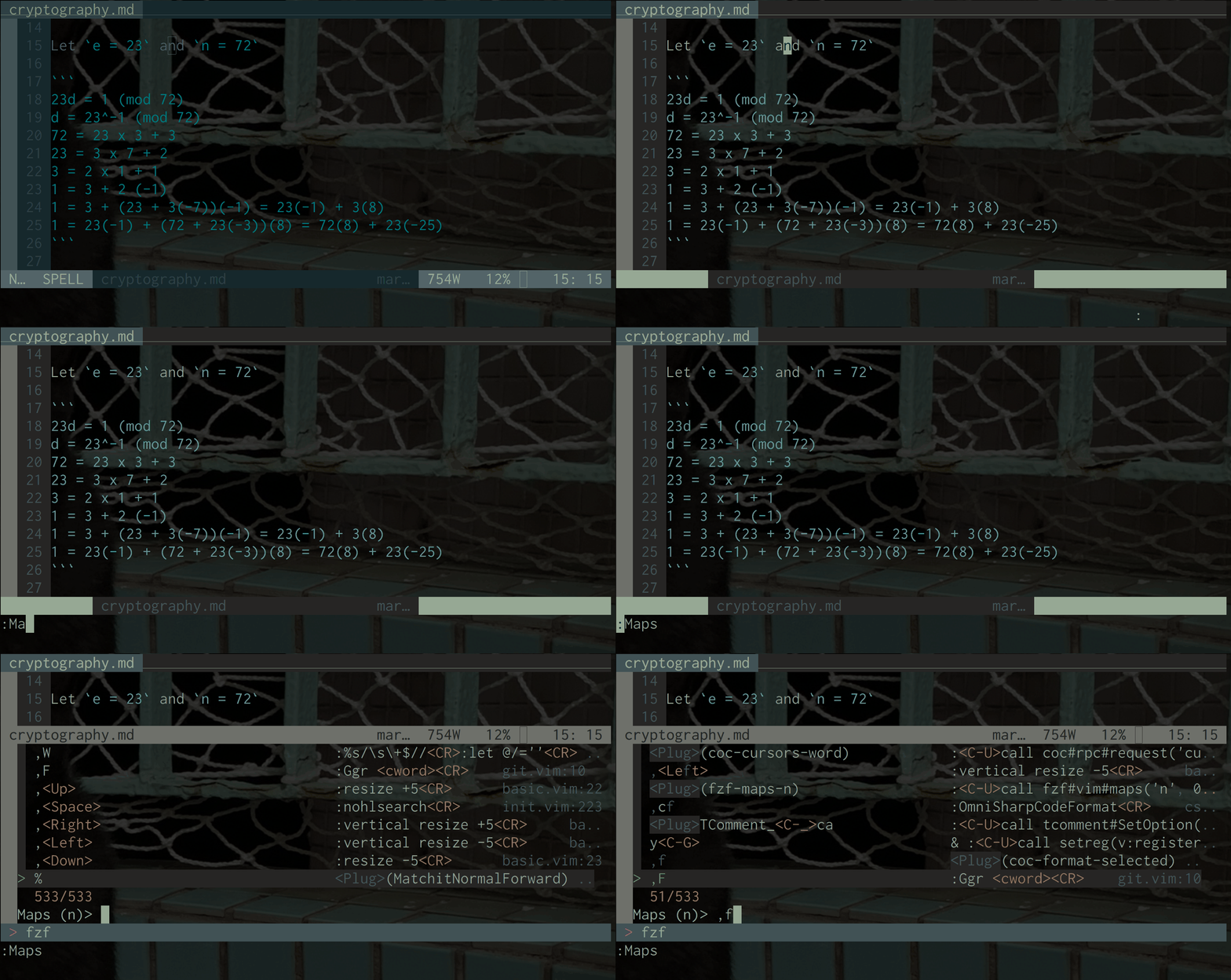
we would know what we can try. :Maps (with help of plug-in
fzf.vim) does exactly this.
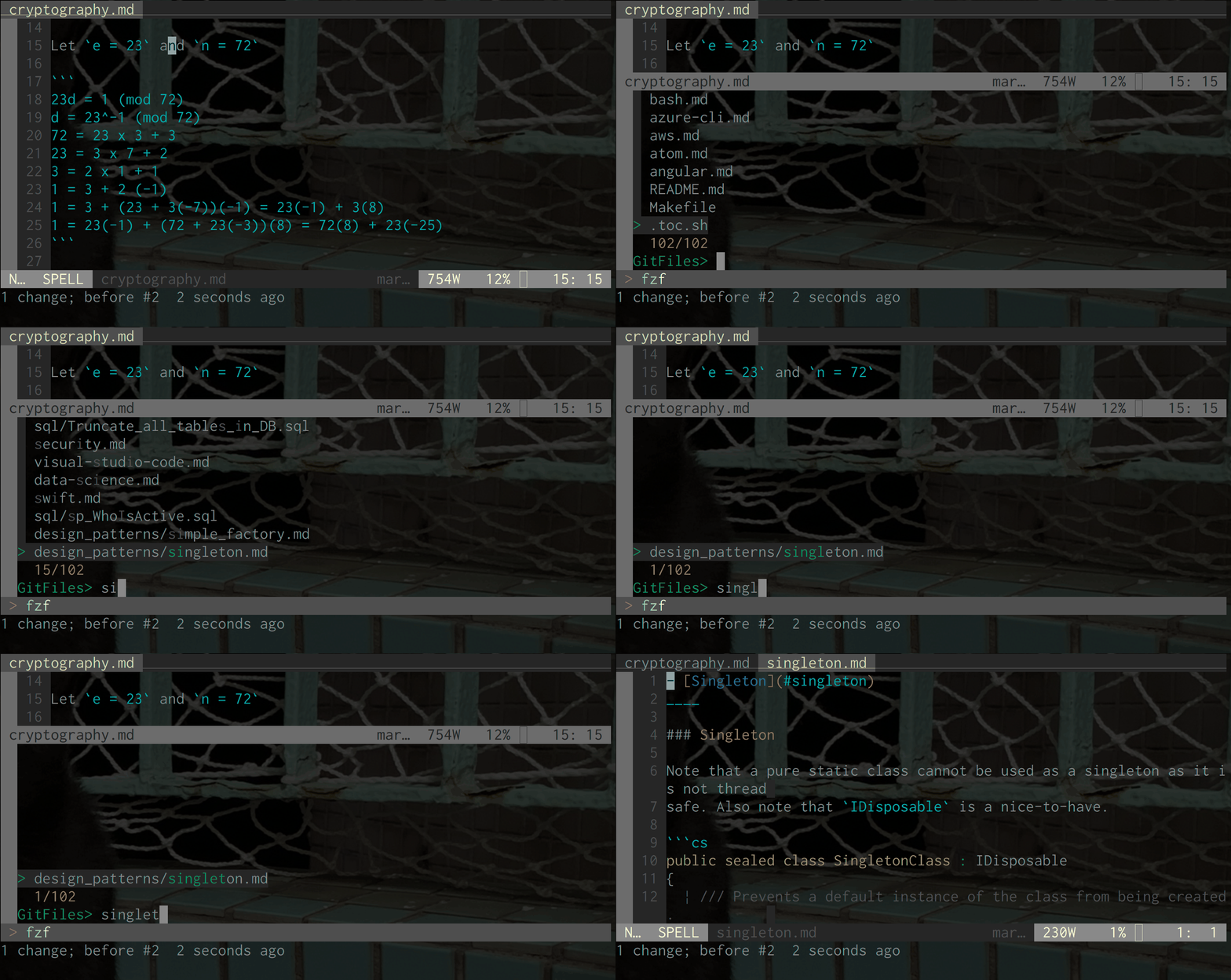
File searching is also available using ctrl+p. It is like file search in any
other editors or IDEs. Behind the scene, it is using fzf and
ripgrep.
Navigation
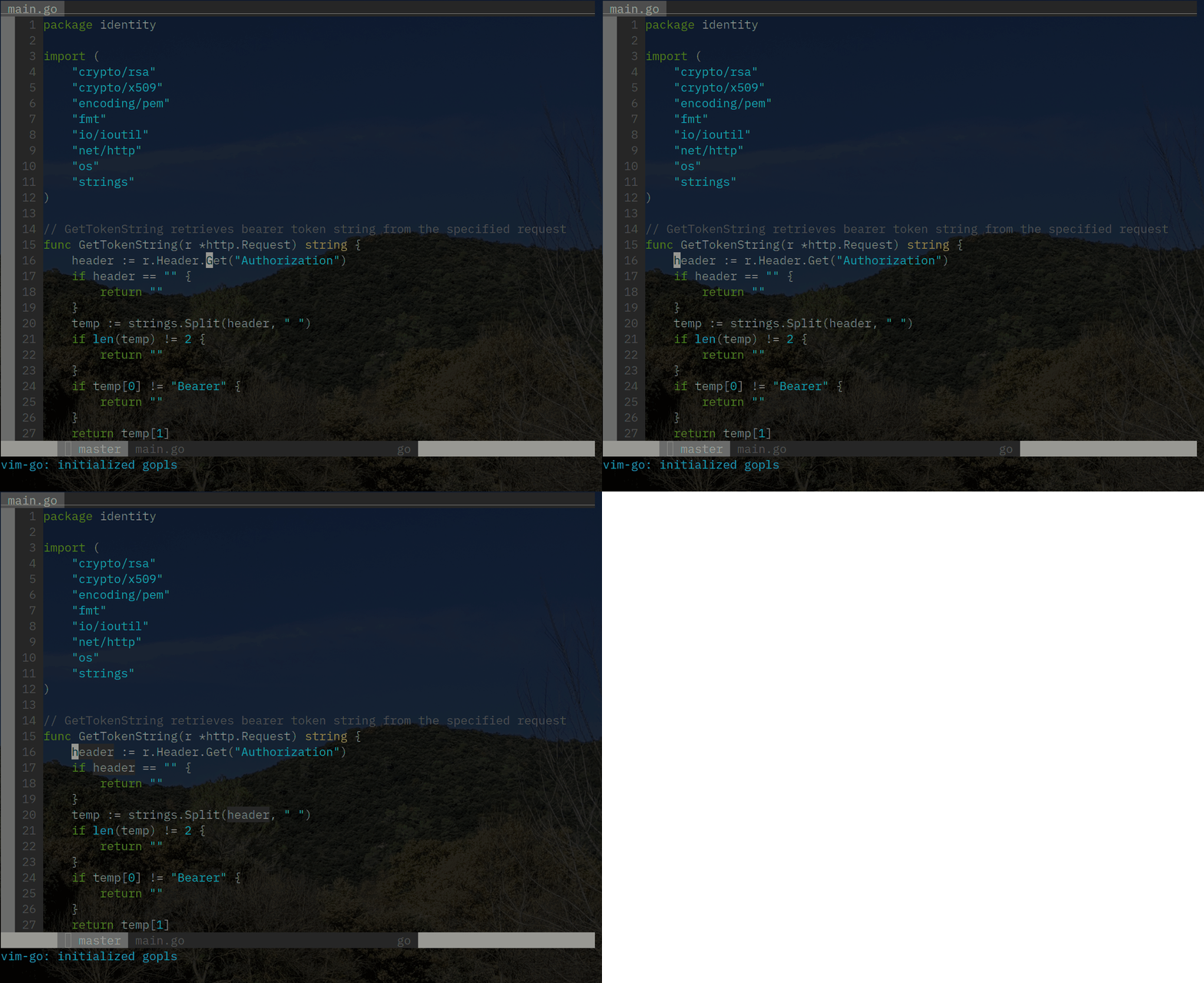
^ can be used to jump to the first character of the current line.
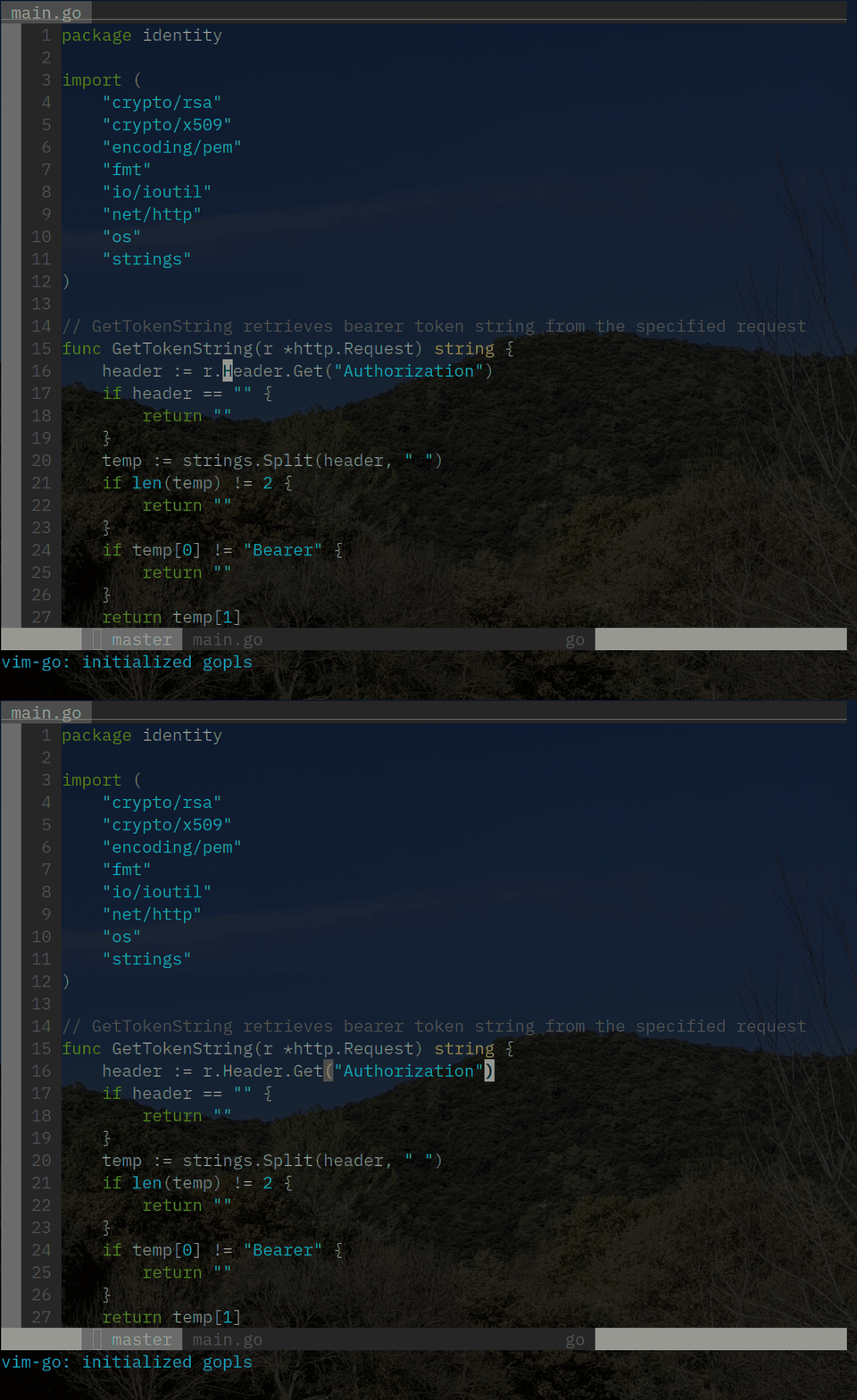
$ can be used to jump to the end of the current line.
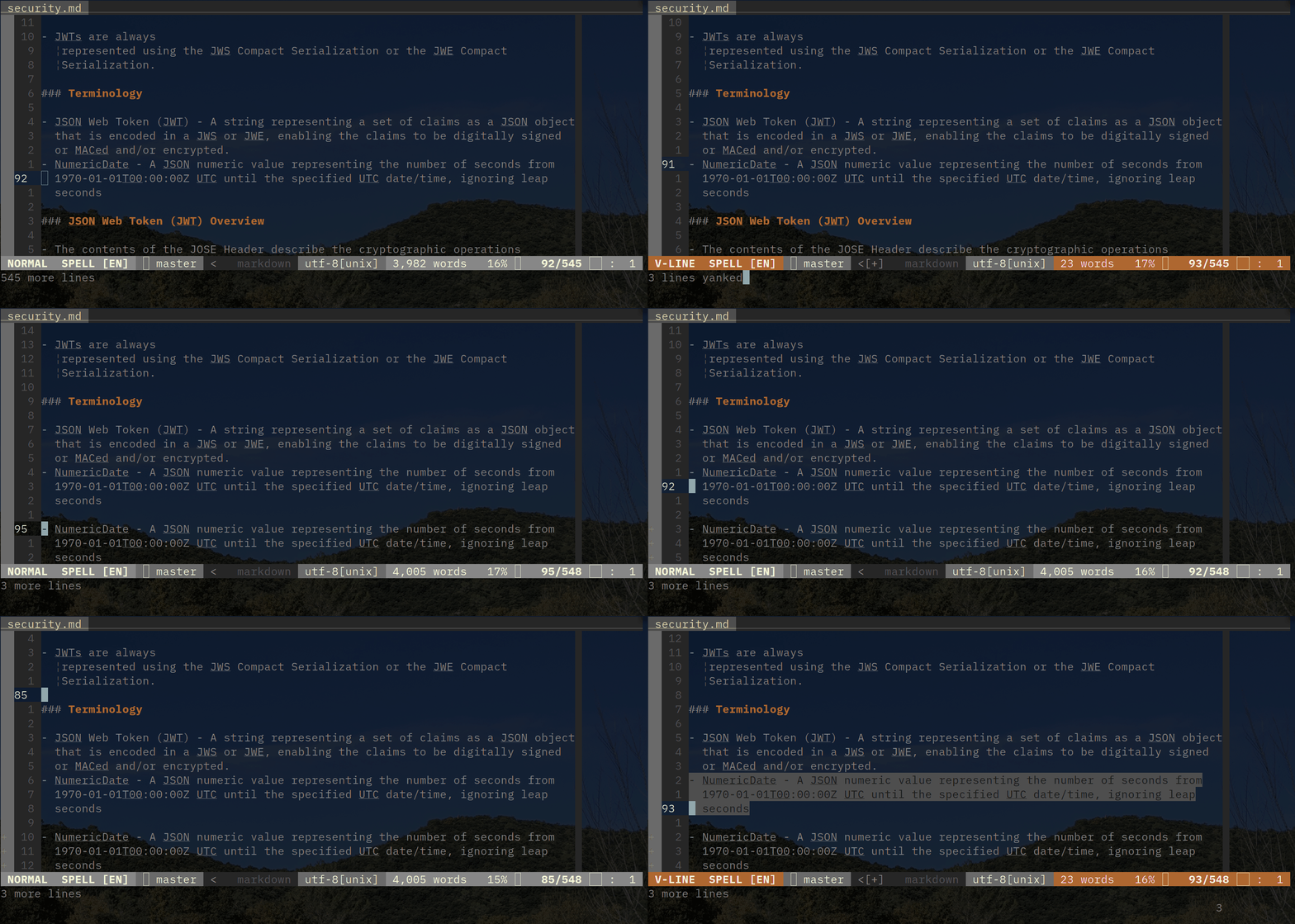
V can be used to visually select a line. Sometimes, one may want to select the
previous visual select by gv. The following example visually select a bullet
point, copy it, move the cursor somewhere else and select the paragraph again.
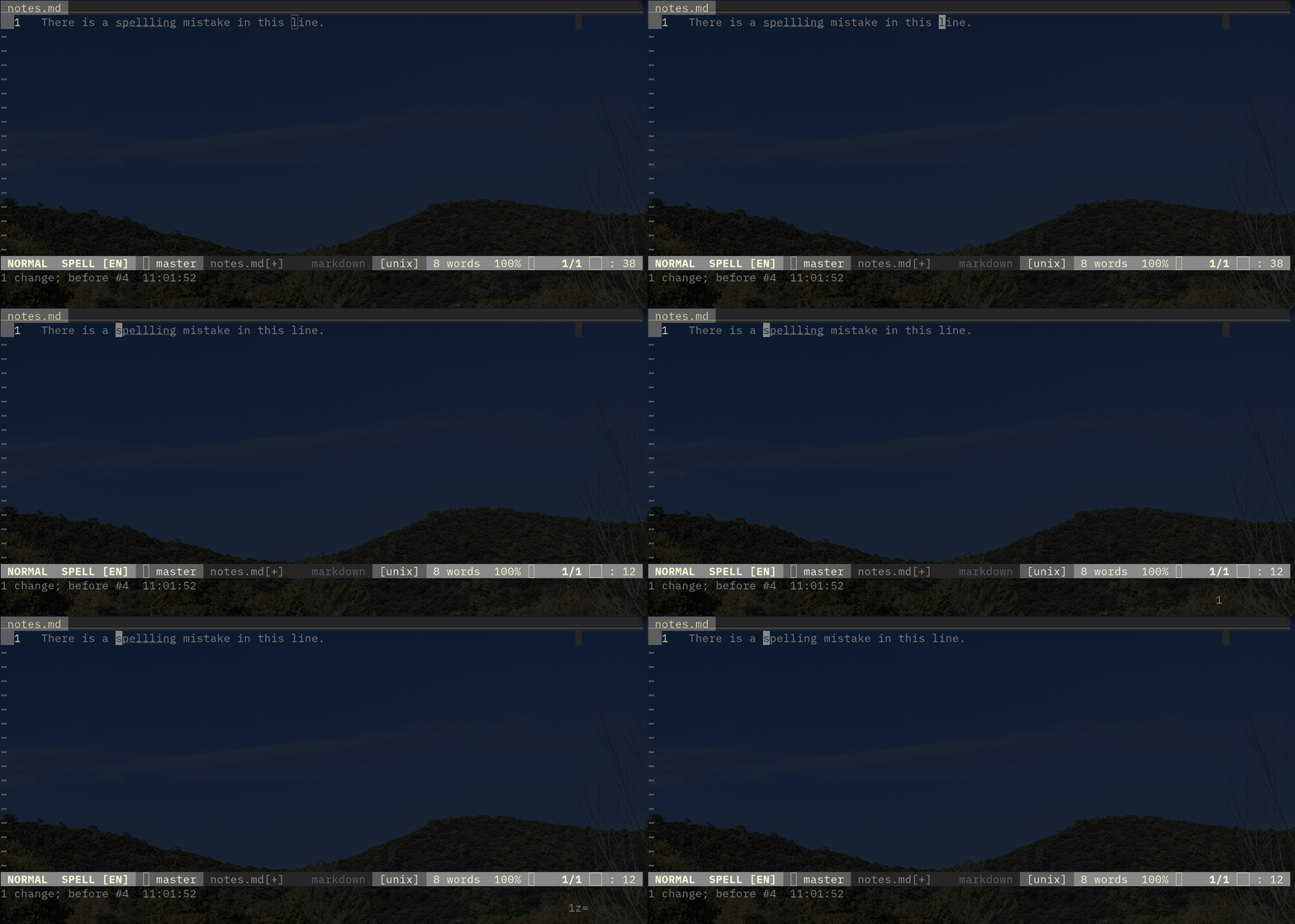
[s and ]s can be used to jump to the previous and the next spelling mistake
respectively. When the cursor is on the spelling mistake, z= can be used show
a list of suggested correct spellings. The following example jumps to the
previous spelling mistake and take the first suggestion to fix it by [s1z=.
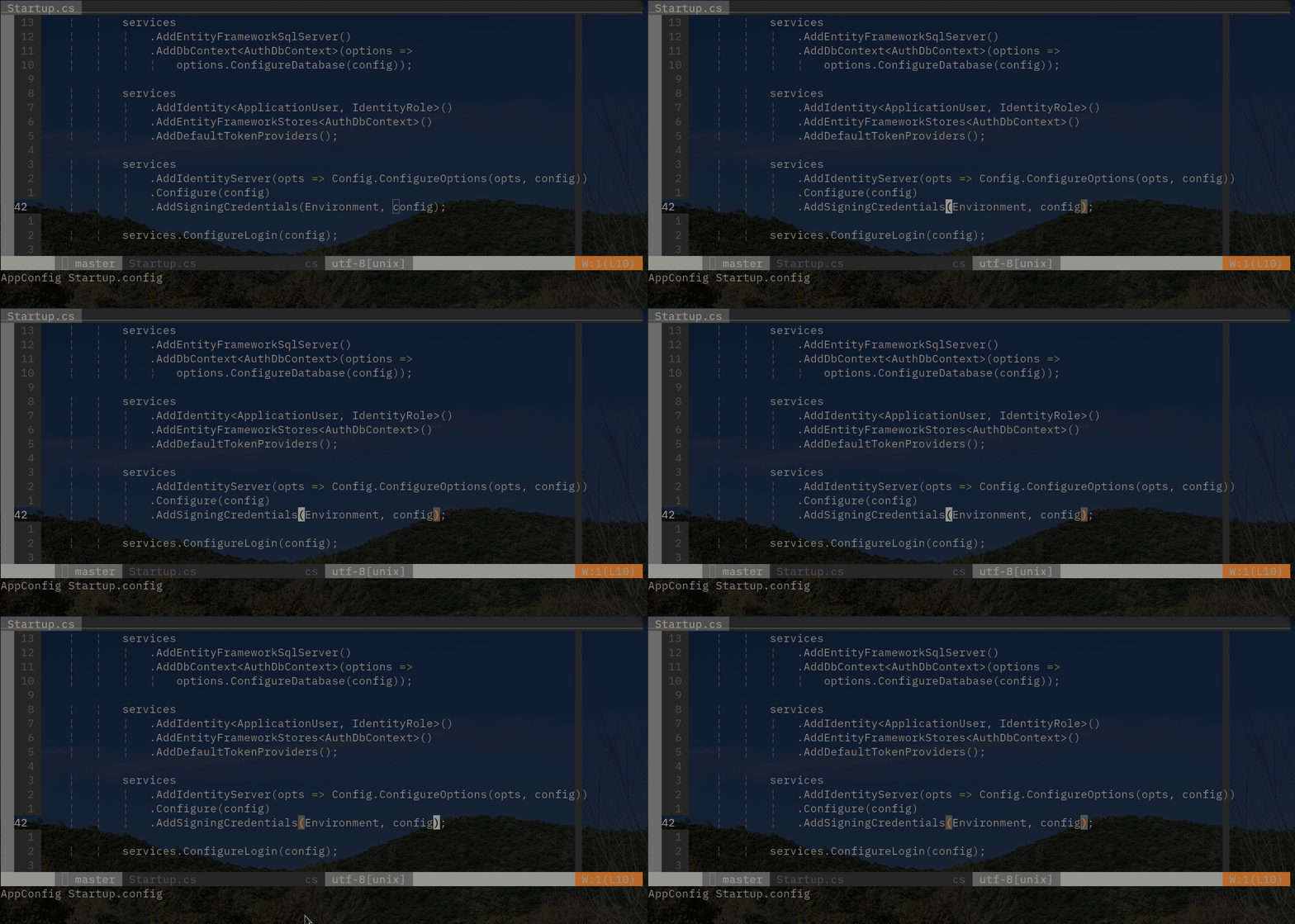
% can be used to jump between square bracket or parentheses surrounding the
current cursor.
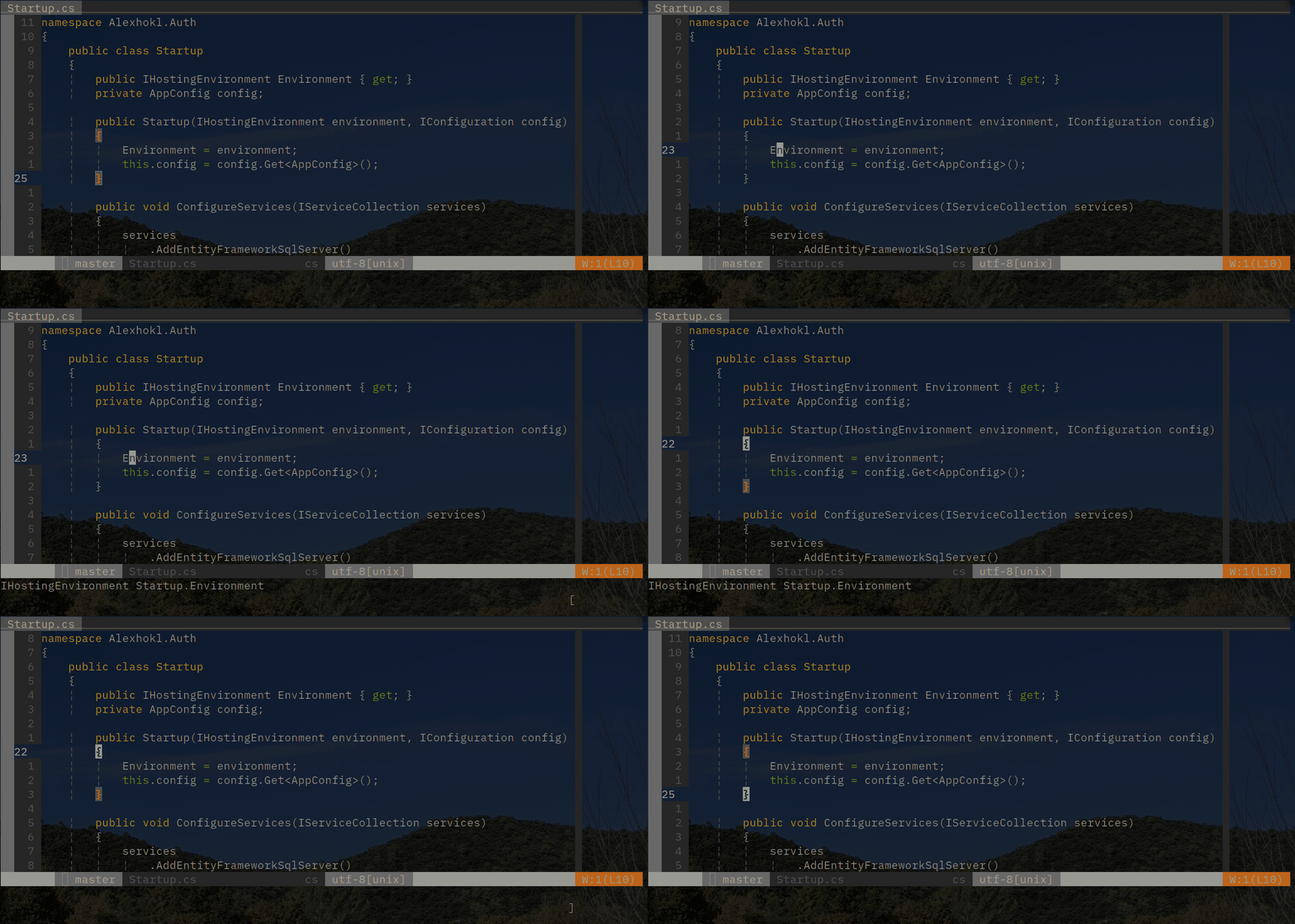
[{ and ]} can be used to jump to the previous and the next curly brackets
respectively.
:jumps shows the list of locations of previous jumps made. ctrl+o and
ctrl+i jumps to the previous and the next position respectively.
Editing
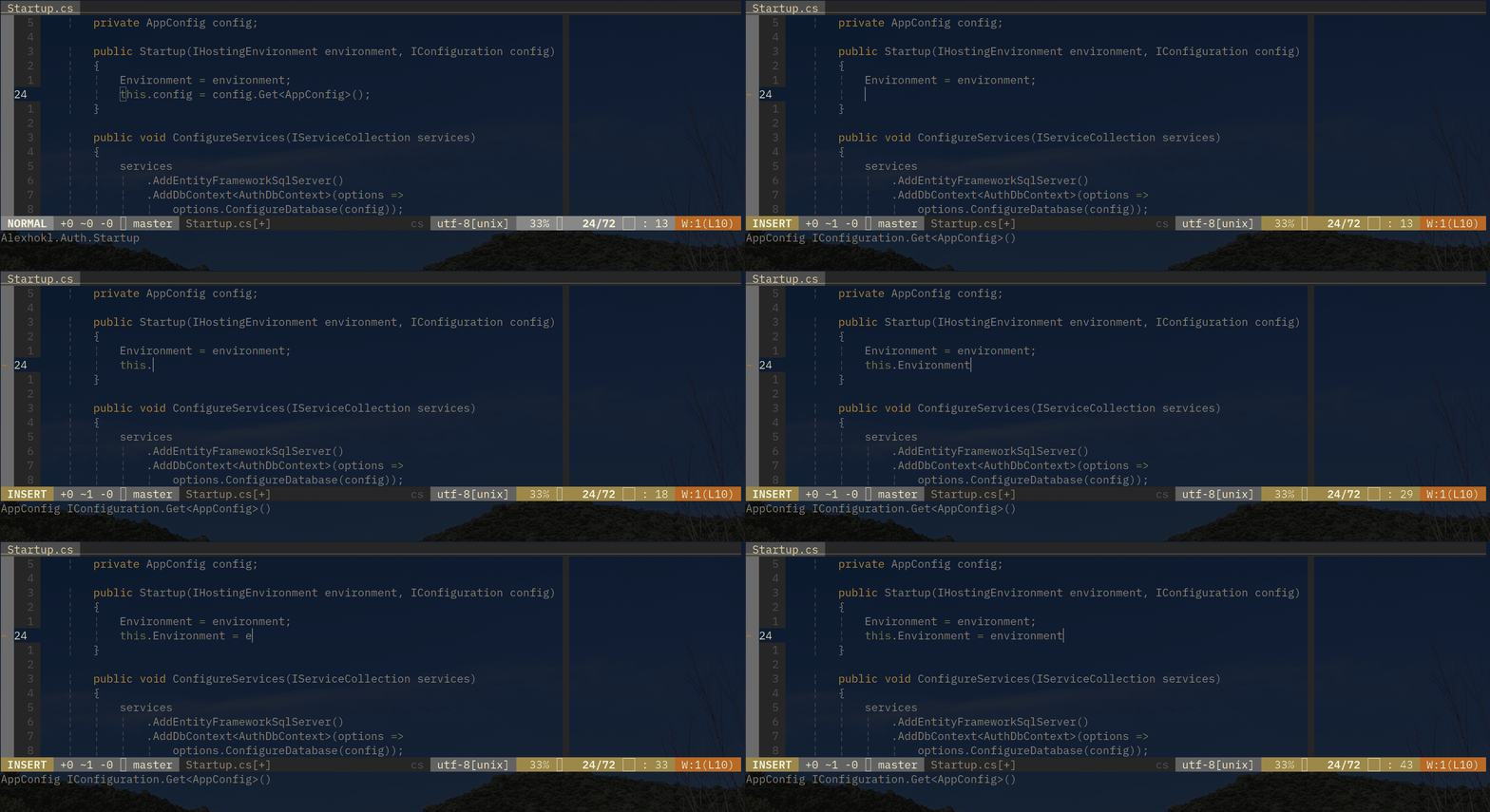
S starts cursor in the current line with correct indentation. It also wipes
out the current line as well.
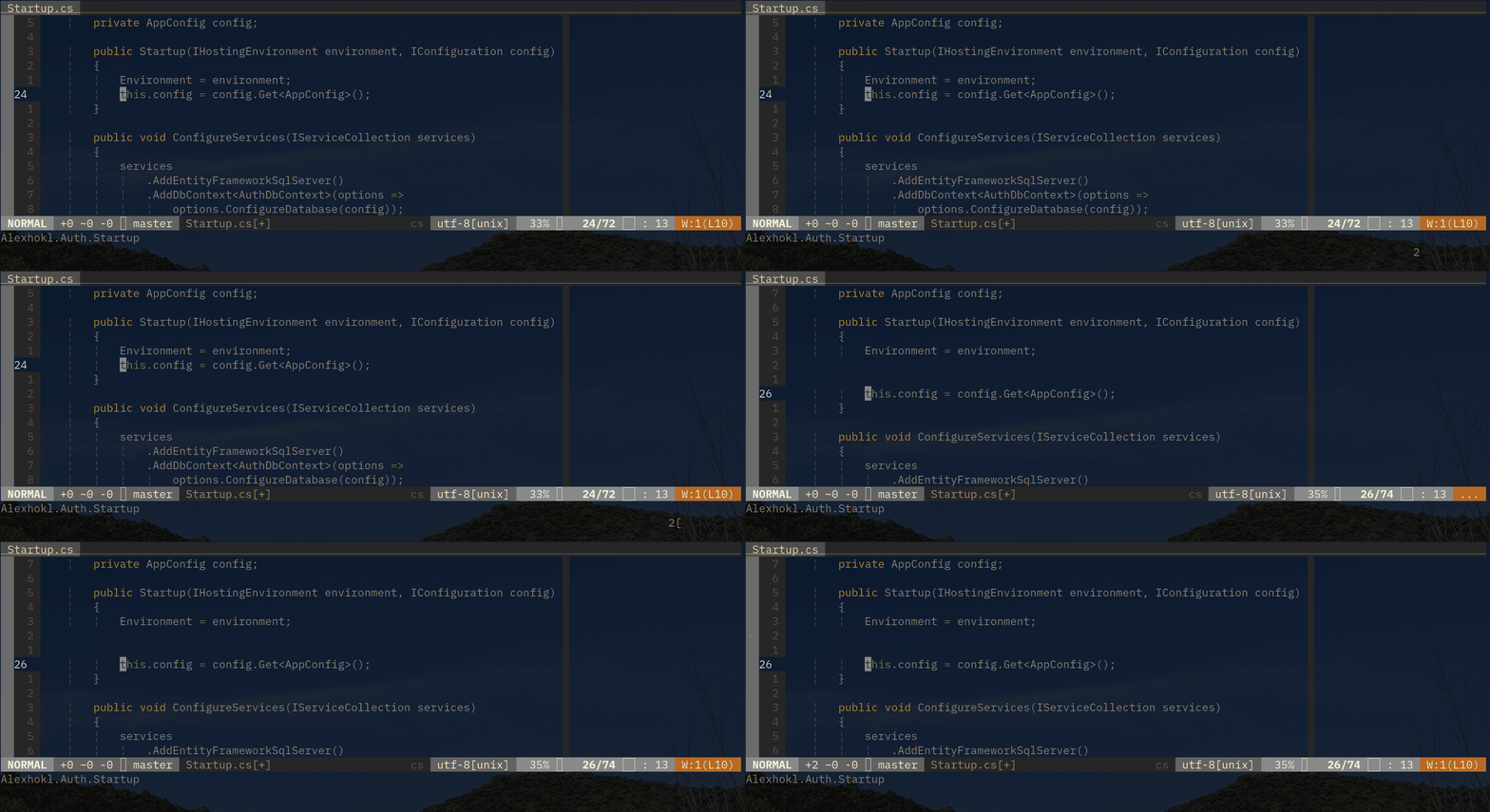
[+space and ]+space can be used to add empty line above and below the
current line respectively. The following example uses 2[space to add to empty
lines above the cursor.
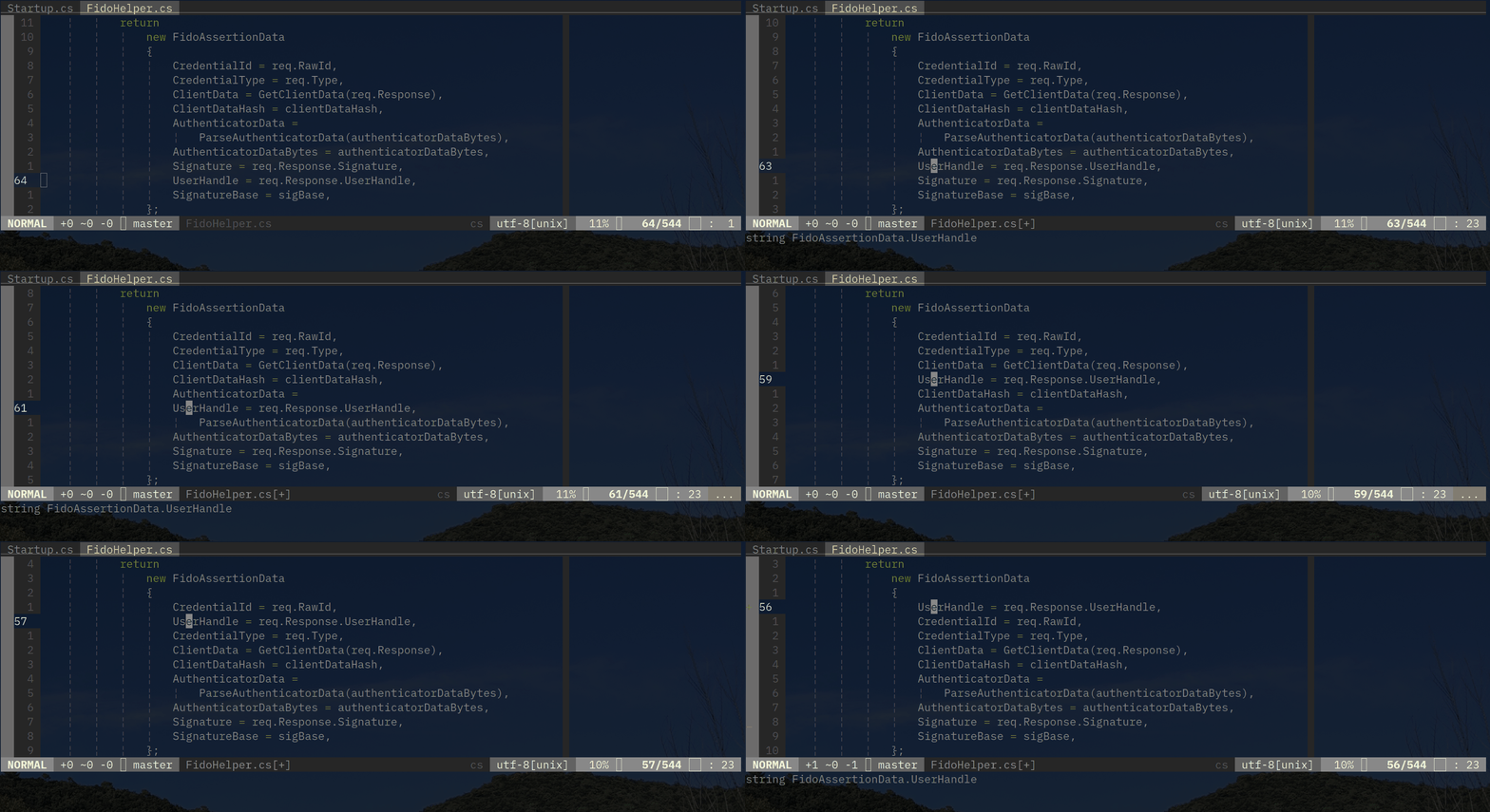
[e and ]e swap the current line with the line above and below respectively.
The following example demonstrates [e.
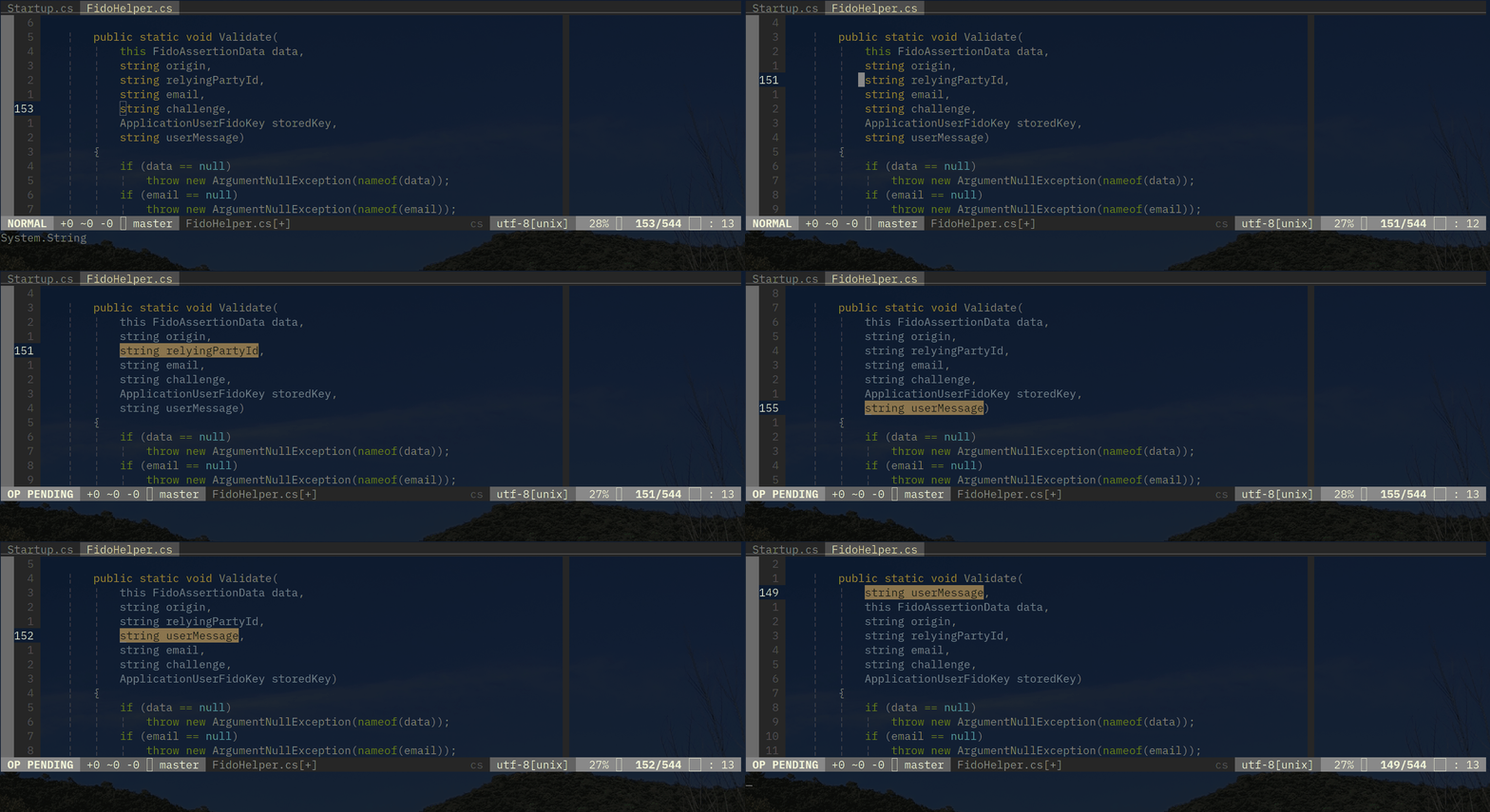
With cursor in parentheses of a method/function parameters, gs can be used to
visually select a parameter and swap it. The following example selects the
parameter to be swapped by using j and k, and the parameter is moved around
by using h and l.
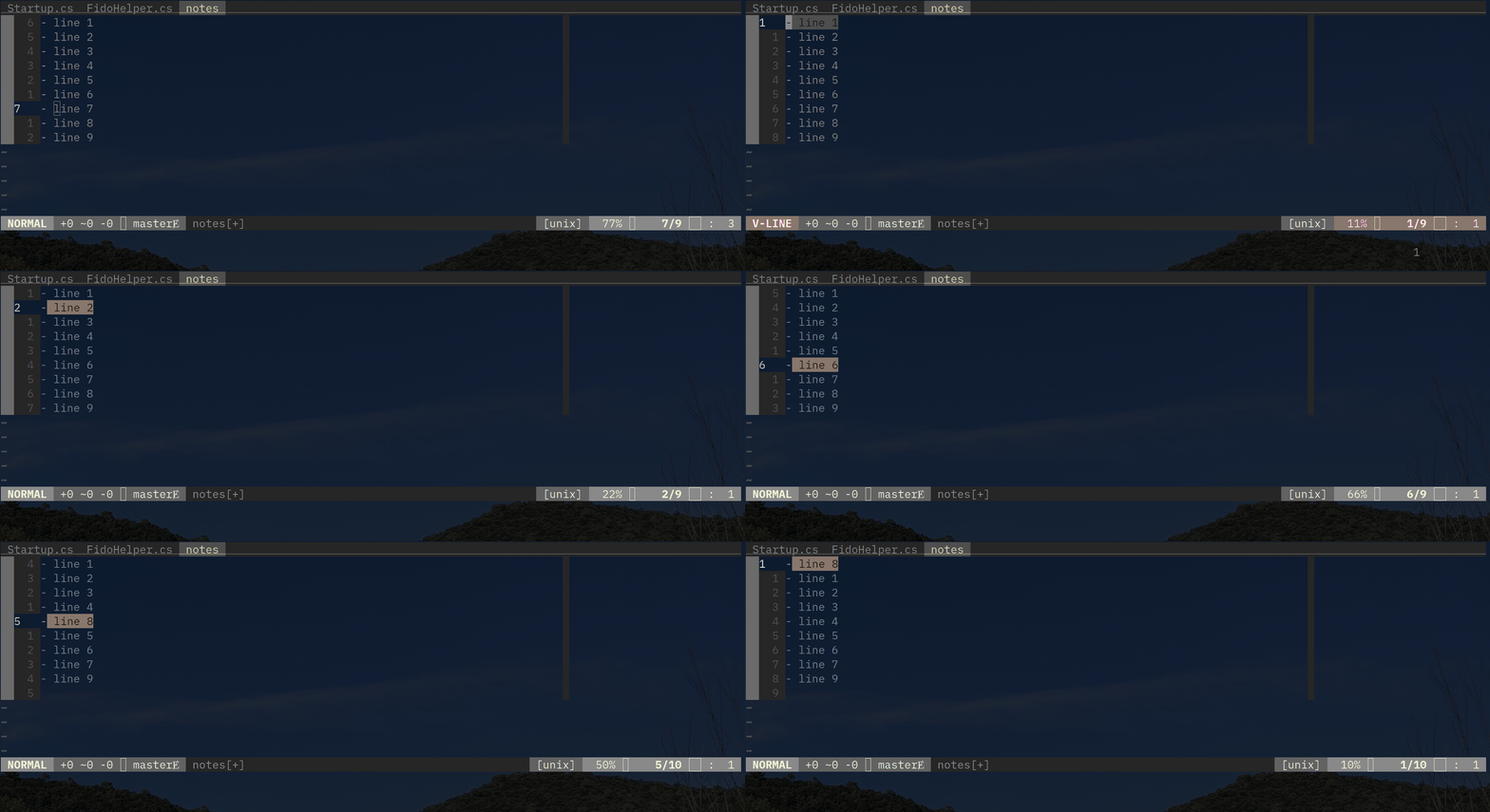
The same command can be used to swap a visually selected list as well.
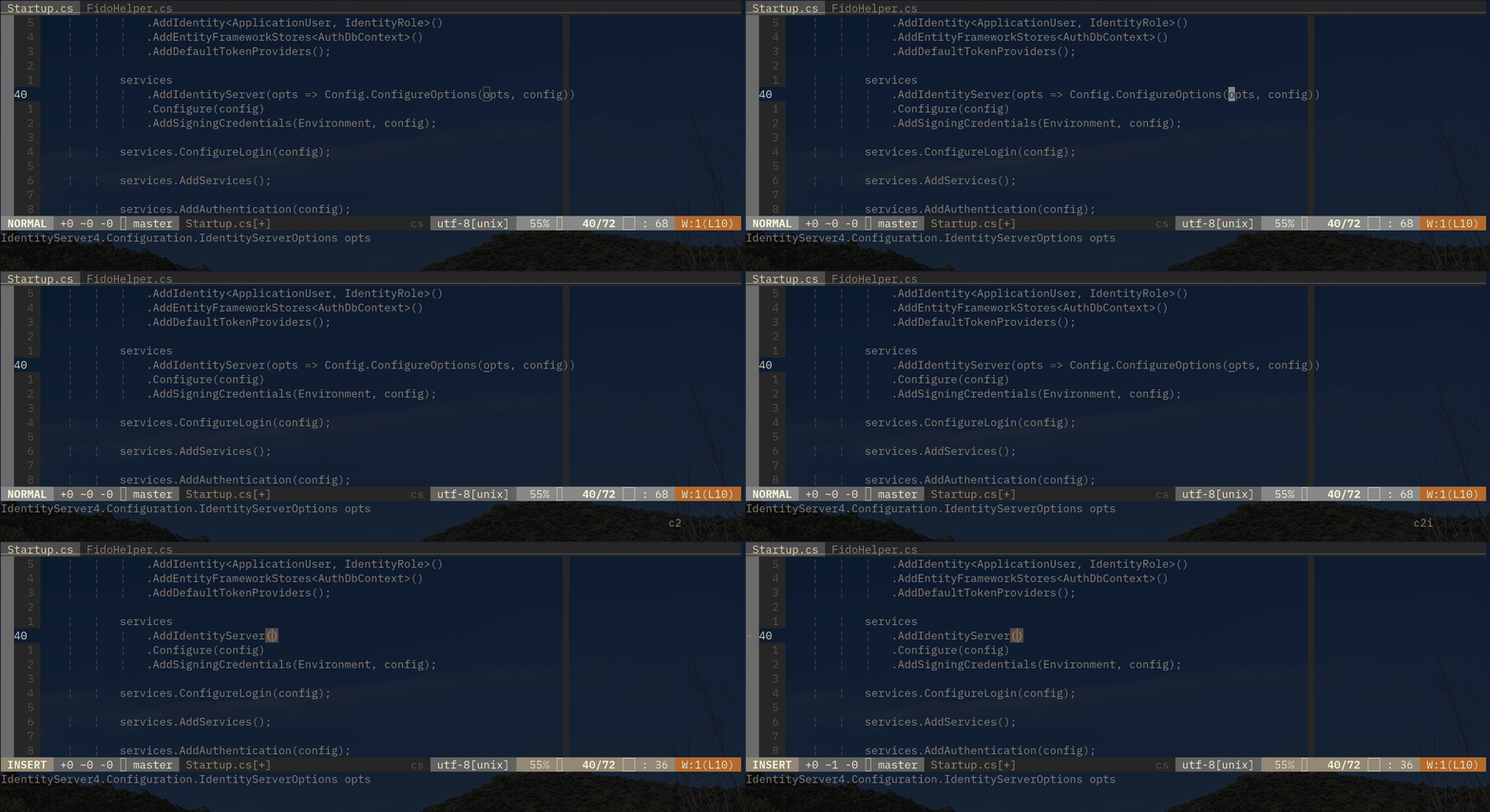
Change operation can be pretty powerful. For example, 2ci( can be used to
change all the text within two parentheses.
The above are some of the very basic stuff. I will cover more in the future blog posts.
Enjoy coding.
